
8 Slack Commands Every Remote Team Should Know

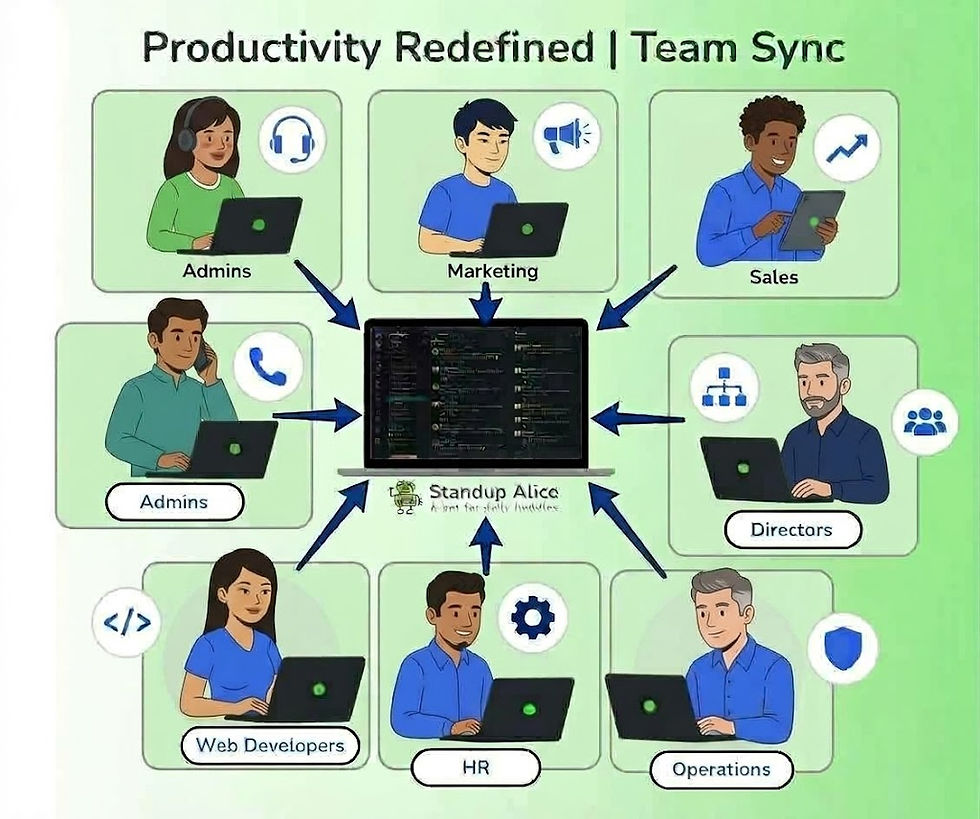
Async collaboration in action: remote team members sharing updates, decisions, and progress seamlessly across Slack.
Slack has become the heartbeat of remote work.
For distributed teams, it’s not just a messaging app — it’s where decisions happen, updates are shared, and collaboration stays alive across time zones.
But here’s the catch:
Most teams only use a fraction of what Slack can actually do.
In 2026, high-performing remote teams aren’t typing more messages — they’re using Slack commands and native bots that reduce noise, speed up communication, and support async workflows.
This guide covers 8 essential Slack commands every remote team should know, plus one Slack-native command many modern teams use to replace daily standups entirely: @alice.
Why Slack Commands Matter for Remote Teams
Remote work depends on clarity and speed. Slack commands help teams:
Take action without switching tools
Reduce back-and-forth messages
Keep conversations focused
Support async updates instead of constant pings
When used correctly, Slack becomes a control center, not a distraction.
And when paired with async-first tools like Alice, Slack becomes a system for alignment — not just chat.
If your team is already using Slack efficiently, the next step is improving how updates are shared asynchronously. These guides explore how modern teams reduce meetings and improve alignment using async-first workflows:
1. /remind — Never Forget Follow-Ups
The /remind command is one of Slack’s most powerful tools for async teams.
What it does: Sets reminders for yourself or others — privately or publicly.
Example:
/remind #engineering Check sprint blockers every weekday at 10am
Why remote teams love it:
Reduces manual follow-ups
Encourages accountability
Works across time zones
2. /status — Share Availability Instantly
Remote teams don’t see each other — so visibility matters.
What it does: Updates your Slack status quickly.
Example:
/status In deep work
Best use cases:
Focus time
Time off
Meetings or deadlines
Small signal. Big async impact.
3. /mute — Control Notification Noise
Slack notifications can overwhelm remote teams if unmanaged.
What it does: Temporarily silences notifications in a channel.
Example:
/mute #random
Why it matters:
Protects focus
Encourages async reading instead of instant replies
Helps prevent burnout
4. /search — Find Context Fast
Remote teams rely heavily on written communication — which makes search critical.
What it does: Finds past messages, files, and decisions.
Example:
/search sprint goals from:@alex
Benefits:
Fewer repeated questions
Faster onboarding
Better async decision-making
5. /collapse — Reduce Visual Clutter
Busy channels slow teams down.
What it does: Collapses images, previews, and attachments.
Why it helps:
Cleaner reading experience
Faster scanning
Less cognitive load
6. /who — Know Who’s in a Channel
Clarity matters in remote collaboration.
What it does: Shows who belongs to a channel.
Why it’s useful:
Avoids tagging the wrong people
Helps new hires
Supports async etiquette
7. /apps — Extend Slack’s Power
Slack becomes far more useful when paired with the right tools.
What it does: Shows installed apps and integrations.
Common remote-team integrations:
Alice (async standups & summaries)
Google Drive
Jira
Calendars
This is where Slack shifts from chat to workflow hub.
8. /shortcuts — Discover What Slack Can Do
Slack keeps evolving.
What it does: Opens Slack’s shortcut and command launcher.
Why it matters:
Helps teams discover new features
Speeds up actions
Allows Slack to scale with the team
@alice — Replace Daily Standups With One Slack Command
Most Slack commands help manage messages. @alice helps teams manage progress.
What it does: Allows team members to submit async standups, updates, and retrospectives directly inside Slack — without meetings.
Example:
@alice Yesterday I finished API testing. Today I’m deploying v2. No blockers.
Or prompted automatically:
@alice What did you work on yesterday?
Why remote teams rely on it:
Replaces daily standup meetings
Creates structured updates instead of scattered messages
Sends automated summaries back to Slack
Works across time zones with zero coordination
Instead of chasing updates across threads, teams get one clean update per person — in one place.
Slack Commands vs Async Workflow Needs (Remote Teams)
Team Need | Slack Commands | Where Alice Helps |
Quick updates | /remind, /status | @alice async standups |
Reduced follow-ups | /remind, /mute | Auto prompts & summaries |
Async clarity | /search | Centralized update history |
Team visibility | /who, /apps | Participation & progress tracking |
Less noise | /collapse | One structured update per person |
Slack Features & Benefits for Remote Teams
Slack works best when used intentionally.
Key benefits:
Real-time + async communication
Powerful integrations
Flexible workflows
Strong search and visibility
But Slack alone isn’t designed to replace structured daily updates — which is why many teams pair it with async-first tools like Alice.
Slack vs Teams: A Quick Perspective
While Microsoft Teams excels at meetings and enterprise control, Slack remains a favorite for remote teams because of:
Faster command-based workflows
Cleaner async communication
Stronger ecosystem of lightweight tools
The best platform is the one that supports clarity without forcing constant presence.
Where Alice Fits In
Slack is excellent for conversation. Alice turns conversation into alignment.
Remote teams use @alice inside Slack to:
Run daily standups asynchronously
Eliminate status meetings
Receive automatic summaries
Track progress without micromanagement
Slack handles discussion. Alice handles discipline.
Final Thoughts
Remote work doesn’t fail because teams lack tools. It fails when tools are used without intention.
By mastering Slack commands — and using Slack-native bots like @alice — teams can:
Communicate faster
Reduce interruptions
Support async workflows
Stay aligned without burnout
Slack becomes quieter. Work becomes clearer.


Comments